Computing Decoded
When you type a web address, a page appears. But the server never sent you a page. It sent plain text, and your browser turned that text into every pixel on your screen. This guide follows one real page, the English Wikipedia article on Alan Turing, through every step.
The short version
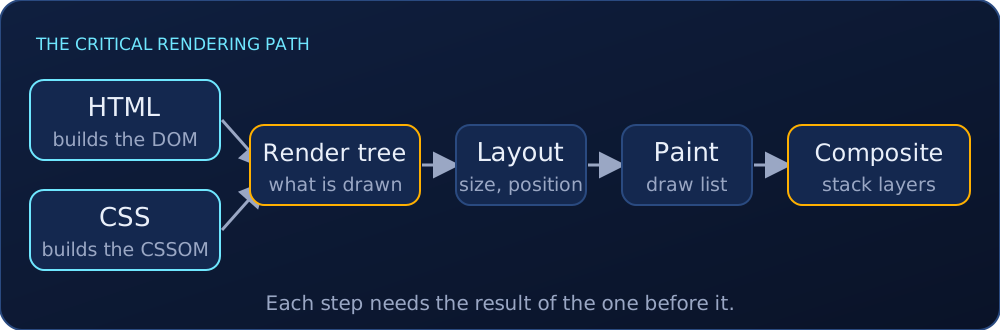
- HTML is parsed into the DOM, a tree of nodes.
- CSS is parsed into the CSSOM, a second tree of style rules.
- Both are merged into the render tree, which keeps only what will be drawn.
- Layout computes the exact position and size of every box.
- Paint writes a list of drawing instructions, and raster turns it into pixels.
- Compositing stacks the layers on the GPU.
The rest of this guide opens each step.
The HTML becomes the DOM
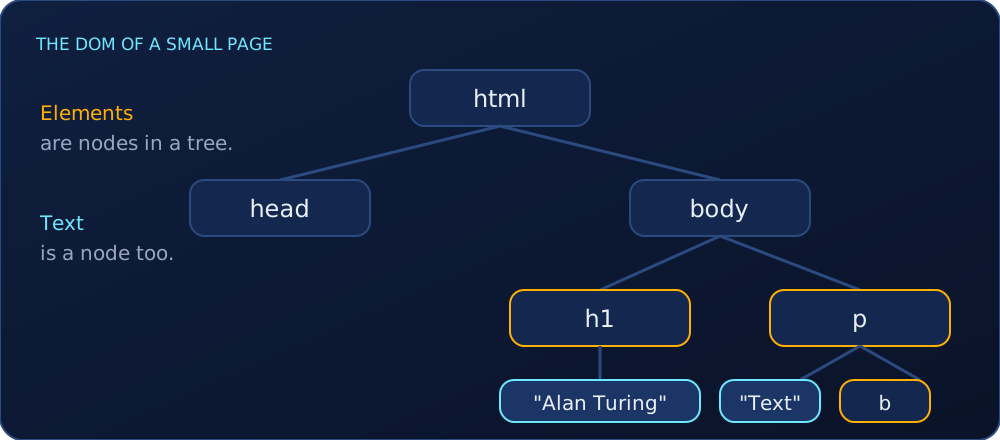
The HTML arrives as bytes. The browser decodes the bytes into characters, cuts the characters into tokens (tags and text), turns each token into a node, and links the nodes into a tree. That tree is the DOM.
This is the real start of the Wikipedia page title, as sent by the server:
<h1 id="firstHeading" class="firstHeading mw-first-heading">
  <span class="mw-page-title-main">Alan Turing</span>
</h1>
The numbers I measured on this page with headless Chrome:
| Page | HTML size | DOM elements |
|---|---|---|
| en.wikipedia.org/wiki/Alan_Turing | about 1.3 MB | 9,783 |
| example.com | 577 bytes | 22 |
Two details matter in practice:
- Broken HTML is repaired in a defined way. The HTML standard specifies the tokenizer, the tree construction and what to do with every parse error, so every browser builds the same tree from the same broken markup.
- Parsing is incremental, and scripts can pause it. The browser builds the tree while the rest of the HTML is still downloading, which is why a page can start to appear early. A classic script can pause the parser, because it might change the document. A script with the
deferattribute is fetched in parallel and runs after parsing, so it does not block.
JavaScript never edits the HTML text. It edits the DOM, the tree.
The CSS becomes the CSSOM
CSS goes through the same journey, bytes to characters to tokens to nodes, and ends as its own tree: the CSSOM. The two trees are independent data structures.
On the Wikipedia article I counted 22 style sheets and 1,287 readable rules. When two rules disagree, specificity decides: an ID selector beats a class selector, a class beats a tag, and if the weights are equal the later rule wins.
h1            { color: gray; }     /* tag: lowest weight */
.firstHeading { color: navy; }     /* class beats tag */
#firstHeading { color: black; }    /* id beats class */
Every element ends up with a full set of computed styles, even for properties nobody wrote, because unset properties take inherited or initial values.
CSS blocks rendering. By default the browser does not draw anything it has processed until the CSSOM is ready. That is why a very large style sheet can delay the first thing you see, and why critical CSS is often placed early in the document.
The render tree
The browser now merges the DOM and the CSSOM into the render tree. Only what will be drawn is kept.
- An element with
display: noneis left out of the render tree. On the Wikipedia article, 884 of the 9,783 elements aredisplay: none. - An element with
visibility: hiddenstays in the tree. It is invisible, but it still takes space in the layout. - Generated content, such as boxes created with
::beforeand::after, is in the render tree even though it is not in the DOM.
So the render tree is not a copy of the DOM. It is what the user can actually see.
Layout
With the render tree ready, the browser runs layout (also called reflow): the exact position and size of every box.
On the Wikipedia page, the title box measured about 600 pixels wide and 40 tall, and its top edge sat about 90 pixels from the top of the page. You can read the same kind of numbers yourself:
const box = document.querySelector('h1').getBoundingClientRect();
console.log(box.width, box.height, box.top);
The box model adds up like this. A box with width: 200px, padding: 20px and border: 5px occupies 200 + 2 × 20 + 2 × 5 = 250 px (with the default content-box sizing). Relative values, like a percentage, are resolved against the container, so if you resize the window, every number is computed again.
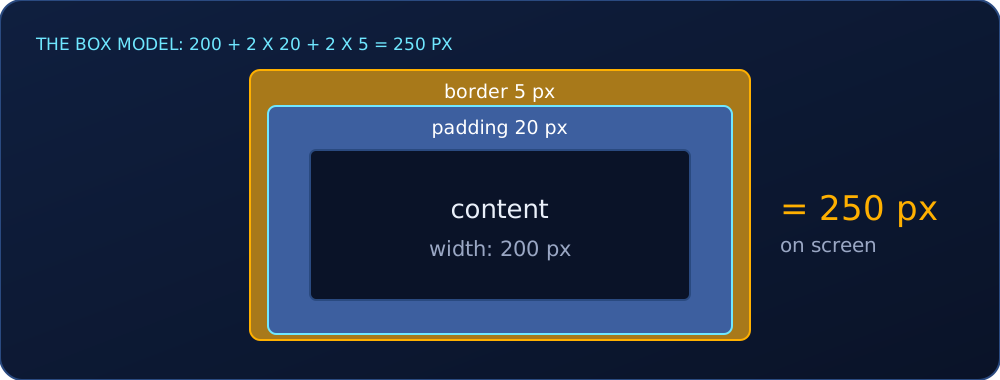
Layout can be expensive because changing one box can move many others. And reading a size from JavaScript right after changing a style can force the browser to compute layout immediately, instead of waiting for the next frame.
Paint
Next the browser paints. It does not draw pixels yet: it writes a list of drawing instructions (rectangles, borders, text), in a defined order, so later elements are drawn on top of earlier ones. Then raster turns that list into pixels, tile by tile, usually on the GPU.
Compositing
Finally the page is split into layers, and the GPU stacks them to produce the frame you see. The browser can give an element its own layer, for example when it is animated with a transform, if that helps. Layers cost memory, so a browser tries to use them only where they pay off.
The key consequence: if you move a layer, the browser only restacks it, without repainting. That is why transform and opacity are the properties recommended for smooth animation.
The frame budget
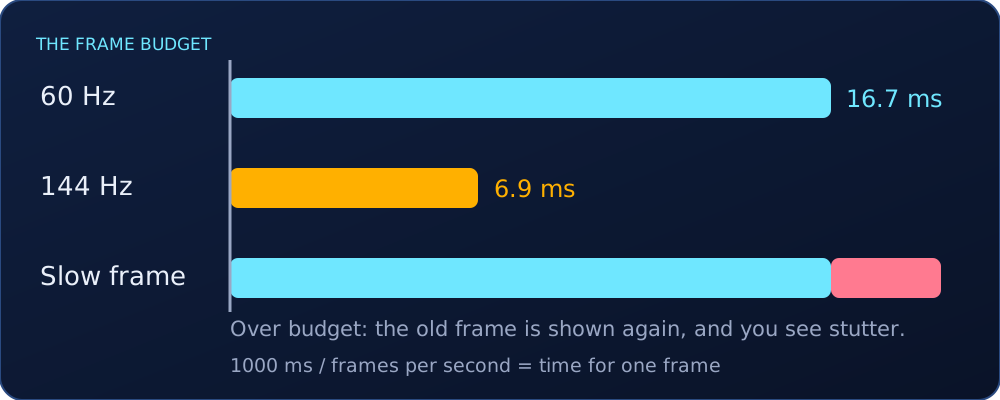
A screen that refreshes 60 times per second gives each frame about 1000 / 60 = 16.7 ms. On a 144 Hz screen the budget drops to 1000 / 144 = 6.9 ms. If a frame takes longer than its budget, the screen shows the old frame again and you see stutter.
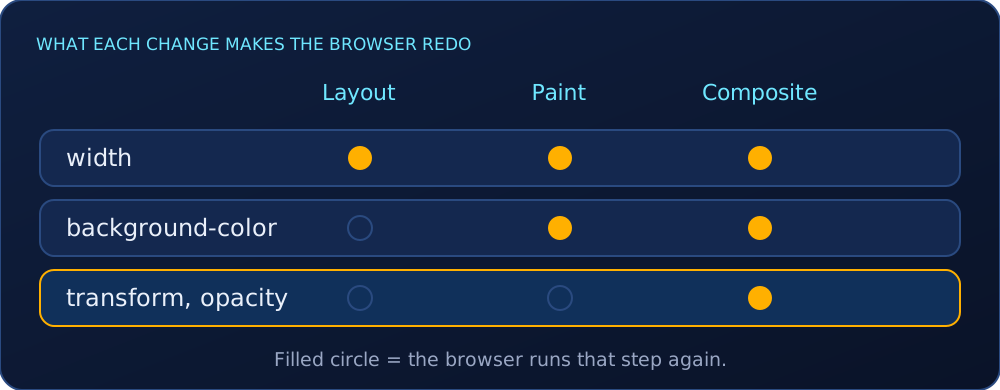
| You change | The browser reruns |
|---|---|
width |
layout, paint and compositing |
background-color |
paint and compositing |
transform, opacity |
compositing only |
Same movement, very different cost.
Try it yourself
Open DevTools on any page and run these in the console:
// how many elements are in the DOM
document.querySelectorAll('*').length;

// how many of them are display: none
[...document.querySelectorAll('*')].filter(e => getComputedStyle(e).display === 'none').length;
Then open the Performance panel, record a scroll or an animation, and look for the layout, paint and composite phases in each frame. The Rendering tab can also highlight paint areas as they happen.
Cheat sheet
- Bytes → characters → tokens → nodes → DOM. Same journey for CSS → CSSOM.
- DOM + CSSOM → render tree (no
display: none). - Layout: position and size. Paint: instructions, then raster. Composite: stack the layers.
- Put scripts at the end or use
defer. Keep critical CSS small. - Animate
transformandopacity. Avoid reading layout values right after writing styles.
Sources
- web.dev, “Constructing the Object Model”: https://web.dev/articles/critical-rendering-path/constructing-the-object-model
- web.dev, “Render-tree Construction, Layout, and Paint”: https://web.dev/articles/critical-rendering-path/render-tree-construction
- web.dev, “Render-blocking CSS”: https://web.dev/articles/critical-rendering-path/render-blocking-css
- Chrome for Developers, “RenderingNG architecture”: https://developer.chrome.com/docs/chromium/renderingng-architecture
- web.dev, “Stick to compositor-only properties”: https://web.dev/articles/stick-to-compositor-only-properties-and-manage-layer-count
- WHATWG HTML Standard, parsing and scripting: https://html.spec.whatwg.org/multipage/parsing.html
- MDN, “Specificity”: https://developer.mozilla.org/en-US/docs/Web/CSS/Specificity
- Measured with headless Chrome on en.wikipedia.org/wiki/Alan_Turing and example.com, 2026-11-02. These numbers change when the page changes. Wikipedia text is licensed CC BY-SA 4.0.
Glossary
- DOM
- The tree of nodes the browser builds from the HTML. JavaScript edits this tree, not the HTML text.
- CSSOM
- The tree of style rules the browser builds from the CSS.
- Render tree
- The merge of the DOM and the CSSOM, keeping only what will be drawn.
- Layout (reflow)
- The step that computes the exact position and size of every box.
- Paint
- Writing the list of drawing instructions: rectangles, borders and text.
- Raster
- Turning the drawing instructions into pixels, tile by tile, usually on the GPU.
- Compositing
- Stacking the layers on the GPU to produce the final frame.
- Specificity
- The rule that decides which CSS rule wins: an ID beats a class, a class beats a tag, and the later rule wins a tie.
- Frame budget
- The time available for one frame: 1000 ms divided by the refresh rate, 16.7 ms at 60 Hz.
Practice
Try these before opening the answers.
A box has width: 300px, padding: 10px and border: 2px, with the default content-box sizing. How wide is it on screen?
300 + 2 x 10 + 2 x 2 = 324 px.
What is the frame budget on a 120 Hz display?
1000 / 120 = about 8.3 ms.
Which is cheaper to animate, left or transform: translateX()? Why?
transform. It can be handled by the compositor alone, so layout and paint are skipped. Changing left forces layout again.
An element has display: none and another has visibility: hidden. Which one still takes space?
The one with visibility: hidden. display: none removes the element from the render tree.
Frequently asked questions
What is the critical rendering path?
It is the sequence of steps the browser runs to turn HTML, CSS and JavaScript into pixels: build the DOM, build the CSSOM, combine them into the render tree, run layout, paint, and composite the layers.
Why does CSS block rendering?
By default CSS is render-blocking. The browser does not draw the content it has processed until the CSSOM is built, because drawing earlier could show unstyled content that then jumps.
Is display: none the same as visibility: hidden?
No. An element with display: none is left out of the render tree and takes no space. With visibility: hidden the element is invisible, but its box still takes up space in the layout.
Why are transform animations smoother than width animations?
Changing width forces layout, paint and compositing again. Changing transform or opacity can be handled by the compositor alone, so layout and paint are skipped.
Keep this guide: free PDF
9 pages with the diagrams, the code, a glossary and practice questions, ready to print or save.
Free, 9 pages. The email is optional: leave it empty and the PDF downloads anyway. If you add it, I send new guides and nothing else. Privacy